
 Free Chrome extension
Your pages.
A new place to work.
Confluence to SharePoint brings your content across, so you can spend your time on the work instead of copying it.
Chrome 127+ · Confluence Cloud · SharePoint Online
Confluence to SharePoint
Text, tables, links, and pictures. All in an editable SharePoint draft.
- Free to use
- Uses your existing signed-in accounts
- You review and publish
- No developer-operated server or tracking
A familiar workflow
From one page to the next.
No extra account or API key.
Use the accounts you already work with.
- 1
Capture your page.
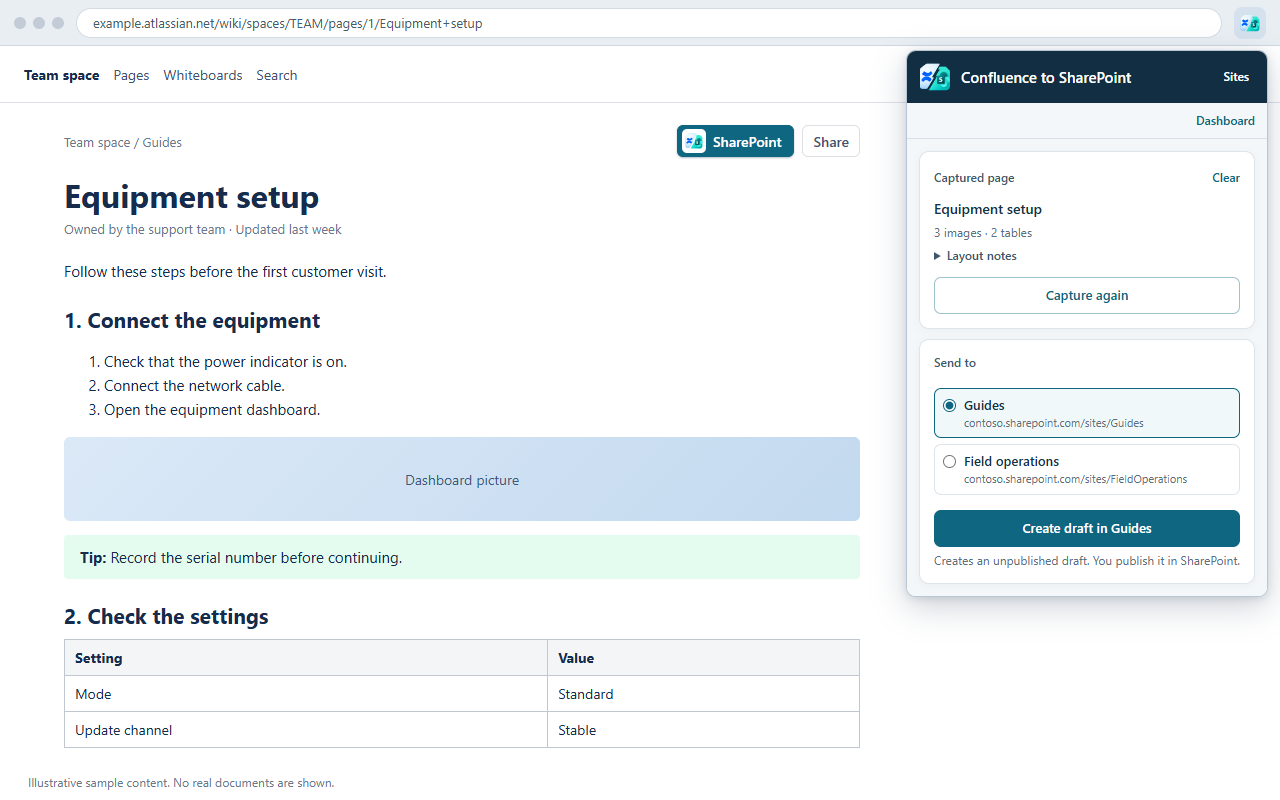
Open a Confluence Cloud page in Chrome and choose Capture page in the extension.
- 2
Choose its destination.
Create a new SharePoint draft, add to an existing page, or update a page you’ve sent before.
- 3
Make it your own.
Review the editable draft in SharePoint. Check the layout notes, make changes, and publish when you’re ready.
Keep the useful parts together
Send once.
Keep it up to date.
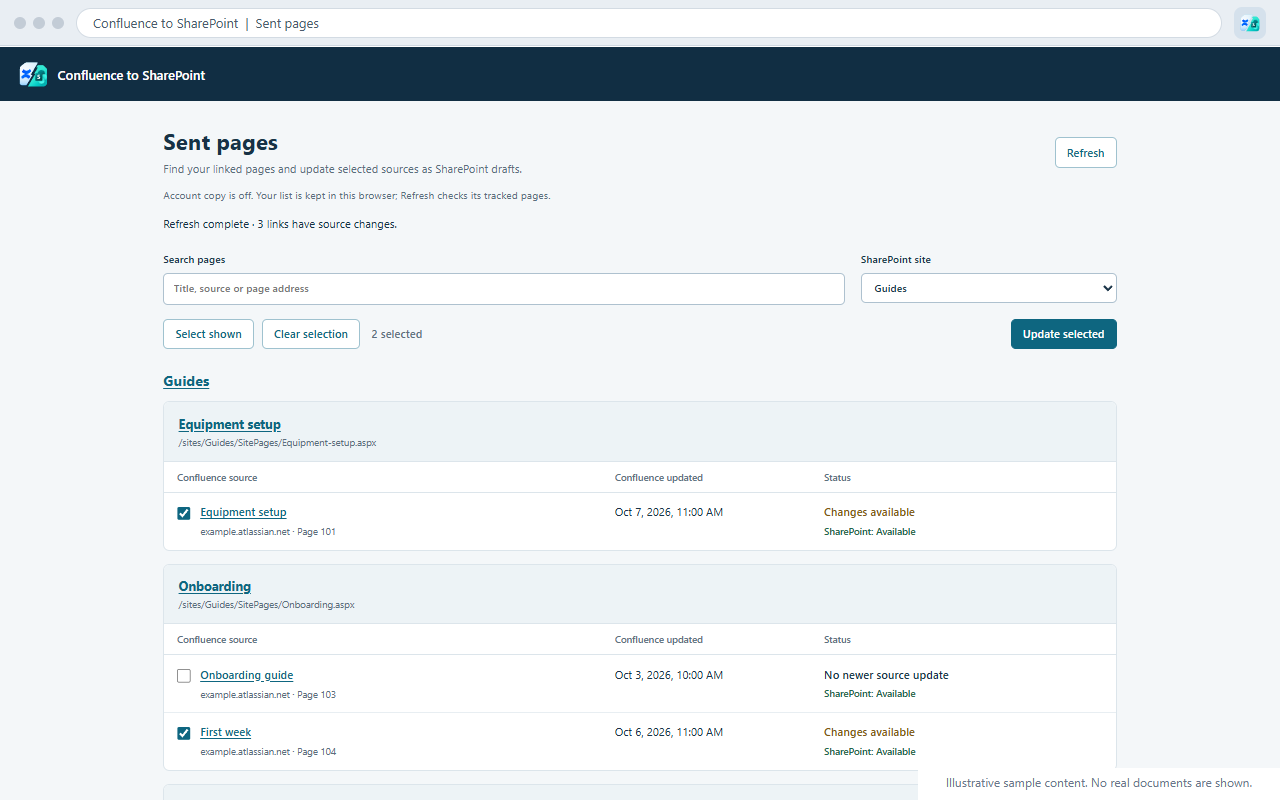
The sent pages dashboard keeps track of where your pages went. Check for newer source changes, select the pages you want, and update their SharePoint drafts.
Updates happen when you request them. Publishing stays in your hands.
A few useful things to know.
What content can it bring across?
Headings, paragraphs, lists, tables, callouts, code blocks, links, and pictures are supported. Anything that cannot transfer exactly is explained in the layout notes. Live or embedded content may become a snapshot, link, or omission; review the draft before publishing.
Will it publish or overwrite something without asking?
It creates unpublished drafts. You choose whether to create a page, add content, overwrite an existing page, or update previously sent content. The existing published page stays visible to readers until you explicitly publish in SharePoint.
What access do I need?
Chrome 127 or newer, access to the Confluence Cloud page, and permission to create pages and upload files in the destination SharePoint Online site. Your organization’s site access rules still apply.
Where does my content go?
Your content goes to the SharePoint site you choose. The extension does not send it to a developer-operated server. Local tracking, optional Confluence account history, and Chrome sync are explained in the full privacy policy.
Where can I report a problem?
Use the project issue tracker. Include your Chrome version, what you were trying to do, and any layout notes or error text. Remove private document content before sharing.
Independent software. Not affiliated with Atlassian or Microsoft.
Small tools. A lasting difference.
Good software is worth supporting.
If our apps make your day a little easier, you can help keep them growing.